Blog

Assessment, Blackboard, educational technology, Faculty Development, Instructional Design, Rubrics

Blackboard Rubrics Help Make Grading Efficient and Consistent

If you’ve never tried using a clickable Blackboard rubric for grading, you’re missing out! 

Video: Why use a rubric?

Not only do rubrics provide students with clear expectations for their work and how it will be evaluated, but well-designed rubrics can also be a timesaver and make grading more consistent. Making them clickable – even better!

You may already have some favorite rubrics saved as Word documents or PDFs that can provide a head start with Blackboard rubric creation. If not, a quick search will yield a number of examples, or perhaps colleagues or departments have common rubrics for papers, discussions, and projects available. Once you have your rubrics on paper, or as digital files, or just some general rubric ideas, you’re ready to create rubrics in Blackboard that may be utilized in all of your courses. Then when students click on an assignment in Blackboard, they will be able to access the rubric associated with the assignment and see the expected criteria and varying levels of achievement. In addition, it’s a good idea to include the rubric file in Course Documents and add the file to the assignment instructions.

Video: How to Create a Rubric in Blackboard 

Steps: 

  • In the Control Panel under Course Tools, click rubrics 
  • Select create a new rubric 
  • Add title
  • Choose points, percentages, ranges
  • Add criteria descriptors
  • Submit
  • Edit the rubric as needed

Once you’ve created your rubric, you can use it with assignments. To do this, you’ll need to associate the rubric with the assignment or discussion. You can associate the rubric with the assignment when you’re creating the assignment or you can go in and edit the assignment and add a rubric.

Video: How to Associate the Rubric with an Assignment

Steps:

  • Associate the rubric with a gradable assignment, discussion, etc. by clicking edit assignment
  • Select add rubric. 
  • Select the desired rubric. 
  • Select how you want students to view the rubric. 

For grading with a Blackboard rubric, watch the video and follow the steps below.

Video: How to Grade Using a Rubric in Blackboard 

Steps: 

  • Access the Grade Center – Needs Grading or Full Grade Center 
  • Select a student’s assignment to grade 
  • Click the little white square to access the rubric 
  • Grade the item by clicking on the applicable levels for each criterion
  • Provide feedback and save the grade 

Select a level of achievement for each criterion and provide feedback for specific criteria and add overall comments if desired. Students can easily see why they received a particular grade because it’s all laid out in the rubric, perhaps with personalized comments. Blackboard calculates the score and enters it in the Grade Center. Students will see the scores and the feedback provided in My Grades.

If you would like to use the same rubric in another course, watch the video and follow the steps below.

Video: How to Reuse Your Rubric in Another Course

Steps: 

  • Click on Course Tools in the Control Panel. 
  • Click on Rubrics 
  • Check the box next to the rubric you want to move 
  • Click Export (Export to the local computer) 
  • Click Submit 
  • Click Download 
  • Go to the new course 
  • Click on Course Tools in the Control Panel 
  • Click on Rubrics 
  • Select Import Rubric 
  • Browse to your Downloads to find the file for the rubric that was exported and downloaded 
  • Click Open and then Submit 
  • Associate the rubric with desired assignments, discussions, etc.

Collaboration, Curation, Discussion, Faculty Development, Instructional Design, Social Media

Critical Thinking Activity: Digital Curation

Image by Silvia from Pixabay

Looking for a learning experience that encourages higher-level thinking? Promotes student voice and choice? Develops media literacy? Collaborative? A digital curation project is something you might consider. 

What is Content Curation?

If you’re new to digital content curation, check out this blog post by Beth Kantor for a quick overview of the topic. Content Curation Primer 

Digital curation is more than simply generating a list of URLs. Digital curation is an opportunity to explore an area of interest while aggregating the best resources available. The resources are organized into a digital collection along with your added insight, and then they can be shared with others. Finding, vetting, and analyzing resources, adding annotations, and creating something new require higher level thinking – Bloom’s analysis, evaluation, and synthesis. For more about digital curation activities for critical thinking, see these articles by Jennifer Gonzalez and L.M. Ungerer.

Digital Curation Examples

As a grad student, I’ve had several digital curation assignments. These were the basic steps involved: 

  • Select a topic
  • Select a digital tool to house the curation
  • Locate and evaluate resources for the curation
  • Organize resources in the curation
  • Add my annotations to each resource
  • Share with the class and with the world
  • Provide feedback on others’ projects
  • Reflect on the experience with a blog post

Scoop.it! is the digital tool that I used for my first curation – a collection of resources called 3 Types of Interaction in Online Courses. I collected resources that included Student-Student, Student-Instructor, or Student Content interactions in online courses. Each resource that I included has my brief annotation and is coded with SS, SC, SI for each type of interaction.

Pearltrees is the tool that I chose for my second digital curation titled Teaching with Social Media in Higher Education. This is a collection of how instructors have used social media for teaching in higher education. Next to each resource is my brief insight. Each of these projects was shared with my classmates for feedback and shared via social media. Final reflections on the projects were shared in blog posts.

Digital Curation Tools

Documents, slides, and spreadsheets can be used for curation, value-added annotation, and sharing. In addition, there are many other free digital curation tools available. Blogs, webpages, and social media are also valuable resources for curation activities.

If you are considering digital curation as a critical thinking activity for students and are looking for more information, tools, and ideas for doing so, see the articles listed below. 

Gonzalez, J. (2017, April 15) To boost higher-order thinking, try curation.[web log] Retrieved from https://www.cultofpedagogy.com/curation/
Ungerer, L. M. (2016). Digital Curation as a Core Competency in Current Learning and Literacy: A Higher Education Perspective. The International Review of Research in Open and Distributed Learning, 17(5). https://doi.org/10.19173/irrodl.v17i5.2566

Assessment, Faculty Development, Instructional Design, Portfolio, Web Design

Websites as ePortfolios and Assessments

Image by Coffee Bean from Pixabay

Have you ever wanted to build your own website or perhaps assign students to build websites for sharing their learning? Whether you want to enhance your web presence, share resources, or assess your students, it’s easier than ever to build a website. No coding experience is needed! Many free web applications are available, and they make creating a website fun! 

Over the past six years, I’ve created a number of websites using these very intuitive website creation applications. As a student, I’ve had assignments that required the creation of a learning log, an e-dossier, an online course, an e-portfolio, a website with a blog, and as an assessment to display my learning. In addition, I’ve made several websites for organizing and sharing audio and video resources. Here are a couple examples.

War and Life: Discussions with Veterans

Military Response to Jonestown

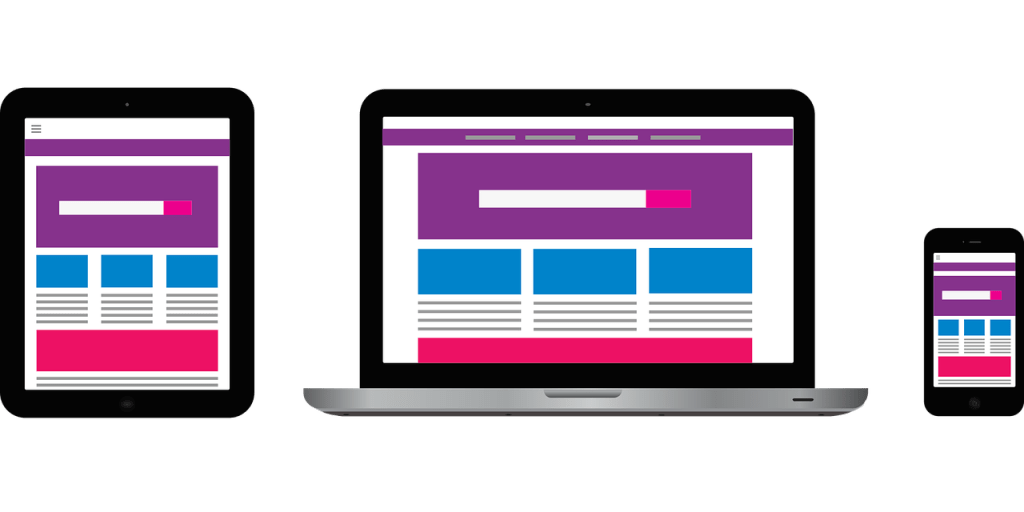
My personal favorite application for creating websites is Weebly*. It’s simple to use, and it has a large selection of customizable templates. Though WordPress is known for blogging, it’s great for websites as well. I also like Google Sites. There aren’t as many options there, but it is great for simple websites. Wix makes for some very nice-looking websites too, but it doesn’t seem to be quite as intuitive as the others in my opinion. And there are many others. The websites created with these applications are responsive, and so the views automatically adjust for various devices. Most of them also offer password protection in case you only want to share the site with specific people.

Faculty Development, Gamification, Instructional Design

Gamification or Game-based Learning?

Gamification or game-based learning – what’s the difference? Gamification is where we add elements of games into our teaching. Game-based Learning is where the learning is totally encompassed within a game. In a couple chapters of Minds Online: Teaching Effectively with Technology, Miller (2014) shared principles of game design and how they can be used in education. Some of those ideas are discussed below.

Have you ever tried to pull a child away from a video game… What is it about these games that are so compelling? 

  • A narrative that draws you in. 
  • Choose to play alone or with friends.
  • Good visuals.
  • Make choices from a menu.
  • Quests or missions are broken into manageable chunks. 
  • Just the right amount of challenge to bring you back again and again.
  • With each task comes immediate feedback. 
  • Each attempt brings a little more knowledge, a little more experience, a little more skill, and a better chance for success.
  • Always a way to get another life. 
  • Earn experience points and level up.
  • Earn rewards, awards, and bonuses.

Gamification

One way we can step up engagement in our classes is by incorporating some of these game design elements. Some simple ways to begin include offering choice, allowing multiple attempts with prompt feedback, and breaking large projects into manageable chunks. 

Students of all ages like choices. We can offer a menu of projects for students to choose from. We can allow students to work on their own or with a partner or group, and we can allow them to choose a role to play. We can also allow them to choose from various modes or platforms to demonstrate their learning. When we provide choices for our students, they can select activities that are targeted at their learning level and personal interests. They will select what is attractive to them, which could be based on a number of factors.

During a game, we often fail in a task, but the game isn’t over. There’s usually a way to get another life, another chance. When we get that additional chance, we use what we learned from the first attempt along with any feedback we received, and we try again. This time we’re more confident that we’ll be successful. Sometimes we are and sometimes we’re not. In a video game, we see our progress and our success reaching just a little further instantaneously which encourages us to try again and again until we master the task or level. We can offer that same type of situation in our course units or modules. We can offer multiple attempts and provide formative feedback from the teacher and from peers. Students need to see that they’re getting closer to mastering the task, so they don’t give up.

Another game characteristic that you may wish to employ is breaking large projects into manageable chunks. Break the project down into many small tasks that can be tracked. Even the names given to categories, quests, or activities can mimic those used in games and a game environment. Students may enjoy rewards like badges, experience points, awards, and leveling up when reaching their goals. These are just a few ways to modify our instruction using some of the successful tactics used by game designers for increased engagement and satisfaction.

Game-based Learning

Many products are available for Game-based Learning whether you want to conduct a lesson or course review as an escape room activity using Breakout EDU, build out your entire course in a game-based Learning Management System or conduct some sort of simulation. Scavenger hunts can be done with paper, but also with phone applications such as Goosechase. Games like Kahoot allow you to upload your questions into the application for a game-show type of experience that is great for test prep or review. Students can submit their answers using phones or laptops, and they love it! Those are just some of what’s available in the world of Game-based Learning.

Resources: 

Miller, M.D. (2014). Minds online: Teaching effectively with technology. President and Fellows of Harvard College

Informal Learning, Instructional Video, YouTube

YouTube: For Producers and Consumers

Image by Thom Sibent from Pixabay

There’s a lot more to YouTube than videos of cats chasing squirrels. What a great resource for teaching and learning! Whether you want to watch videos, share videos, or curate videos that others have created, YouTube makes it easy! 

If you want to move past just searching and viewing videos, consider creating your own channel. It’s easy to do. Then you can develop playlists of videos that you create and/or playlists of videos that others have created. Use the videos in class or provide them as a resource for students or the world. As YouTuber Tyler Tarver says, “Make playlists for those you want to help.”

Here are a few YouTube channels that you might want to explore:

With all of the tools available today, creating video content is something anyone can do. Students enjoy seeing their instructors in videos, and not only can these videos provide some review or extra help for students, they can also help deepen connections with the instructor. Video is ideal for capturing a special event or conversation to share with others. No need to worry about necessarily keeping videos short either – if it is engaging, people will watch. 

A couple important things to consider when using YouTube. As a consumer, it’s important to review a video all the way through before posting in Blackboard or using in class to make sure it’s what you really want to share. On the flipside – as a producer, if you post a video to YouTube, you have three choices – private, unlisted, or public. Private videos aren’t available to anyone else. Unlisted videos aren’t available in searches, but they can be seen by others. If someone knows your channel, they can view an unlisted video. Public videos are available in searches and for anyone to see.